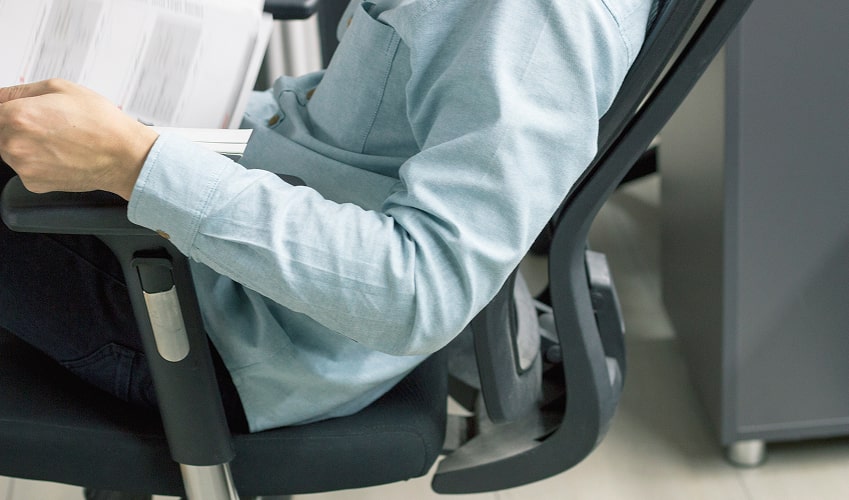
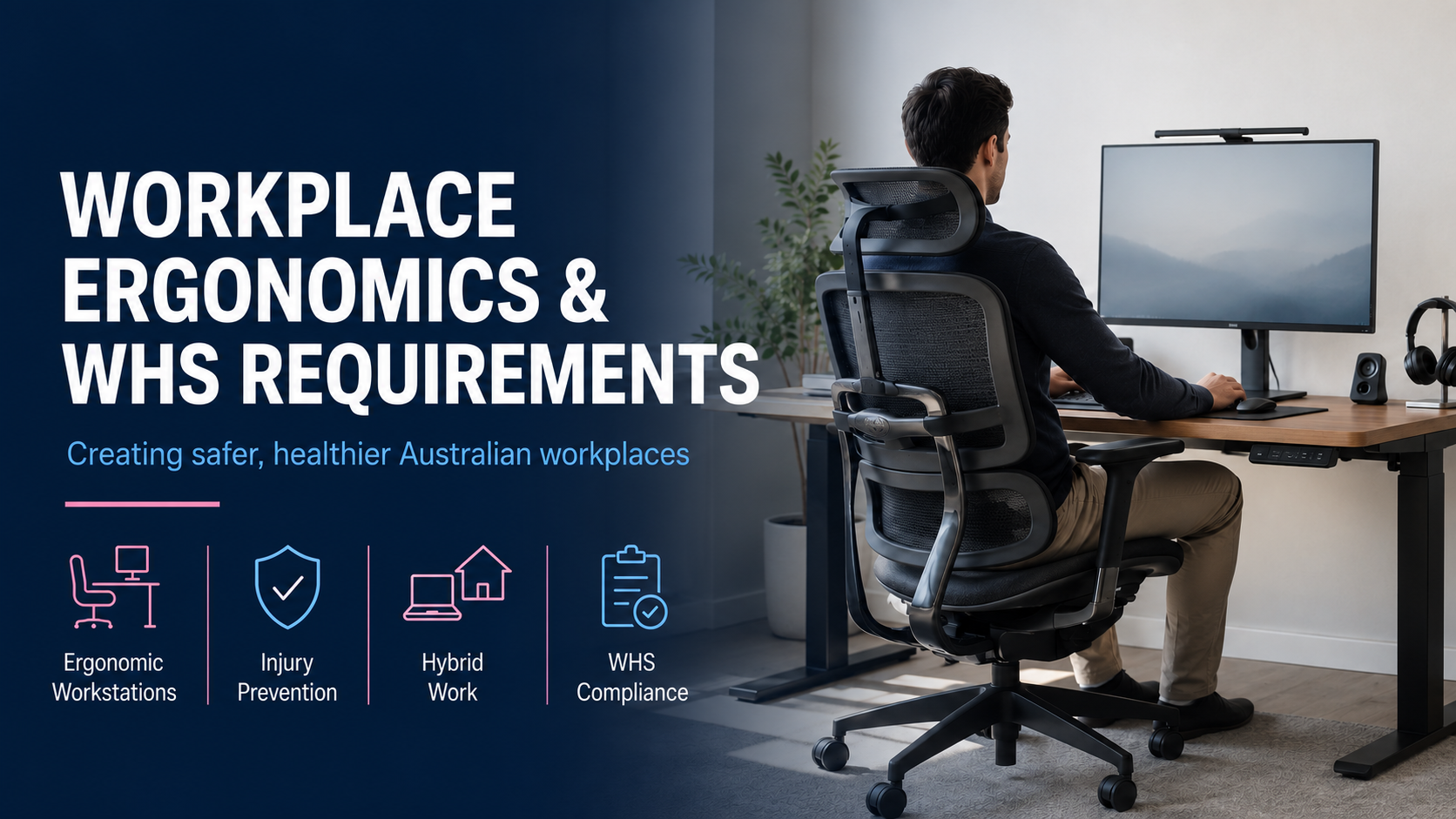
For Australian businesses, workplace ergonomics is about more than tidy desks. Good workstation design is proven to contribute to healthier and more productive workplaces by reducing the risk of injury and distraction.
More than that, office ergonomics is a genuine work health and safety (WHS) concern. Every manager should understand workplace ergonomics WHS requirements so they can support employees with a comfortable, compliant and safe workstation setup.
By the Numbers: Why Workplace Ergonomics Matters for Australian Businesses
Safe Work Australia’s latest figures show that more than one-third of serious workers’ compensation claims (34.6%) in 2025 were attributed to body stress:
- Total claims: 50,600
- Median lost time: 9.2 weeks
- Median compensation: $19,400
It’s Australia’s most common workplace injury, and it’s costing almost $1 billion annually. While not all 50,600 claims arose from poor workstation setup, proper ergonomic workstation setup is a workplace injury prevention measure with significant impact.
Research from Queensland University of Technology also showed that ergonomic interventions and posture exercises have benefits for productivity, presenteeism, and sickness-related absenteeism.
The bottom line? The ROI of ergonomic office furniture can be counted twice, in employee health and job satisfaction, and in workplace productivity.
What Are WHS Requirements for Workplace Ergonomics?
Under the Work Health and Safety Act 2011, persons conducting a business or undertaking (PCBUs) must “seek to eliminate risks to health and safety so far as reasonably practicable”. That includes ergonomic hazards:
- Sustained or awkward postures
- Repetitive movements
- Lifting heavy objects
- Poor lighting and ventilation
- Trip hazards
Workplace ergonomics and WHS requirements are not separate. Managing ergonomic risk is part of meeting your PCBU duty of care.
Workplace Ergonomics for Hybrid and Work-From-Home Teams
Since 2023, PCBU WHS duties also extend to people working from home. Hybrid work ergonomics can be a hidden problem with unique risks.
Home “offices” are often the dining table or another space that is workable for short tasks, but places real pressure on workers’ bodies doing full days of computer work.
Employers can support better hybrid work ergonomics by:
- Providing or subsidising ergonomic equipment
- Offering ergonomic assessments
- Including home office ergonomics in WHS induction and training materials
- Establishing a simple self-assessment process
The location changes. The risk factors and the duty of care don’t.
Check State and Territory Guidelines
Safe Work Australia’s guidance on meeting Work Health and Safety Act requirements includes some helpful recommendations for Australian businesses, including:
- Conducting risk and ergonomic assessments before purchasing office furniture
- Designing workstations that support ergonomic postures
- Purchasing equipment that accommodates various tasks and workers
- Providing adequate information and training
- Monitoring workers’ health and the conditions at the workplace
These workplace ergonomics requirements can also vary by state and territory, or even the type of work being carried out.
Not surprisingly, this can be a lot for PCBUs and managers to wrap their heads around. A professional ergonomic assessment will help you clarify the requirements and make the best decisions for your workforce.
Common Ergonomic Risks in Office and Hybrid Workplaces
Workstation ergonomics often fails in small, preventable ways. A screen slightly too low. A chair without enough support. A laptop used all day on a dining table.
Over time, each seemingly minor stress builds into neck pain, shoulder tension, lower back dysfunction, and upper limb conditions.
| Risk | Example | Practical Control |
| Poor posture support | Chair too low or no lumbar support | Provide an adjustable chair and show staff how to set it up |
| Awkward neck position | Laptop screen below eye level | Use a laptop stand with separate keyboard and mouse |
| Reaching and repetition | Mouse too far away | Keep keyboard and mouse close to the body |
| Prolonged sitting | Long periods without movement | Build in posture changes and short movement breaks |
| Monitor strain | Screen too low, high or off-centre | Use a monitor arm or riser to position the screen correctly |
Practical Ways to Improve Workplace Ergonomics
Use a Workplace Ergonomics Checklist
Following a simple checklist removes the guesswork and means you don’t miss important ergonomic considerations. Here’s an example of an ergonomic office setup checklist that you can adapt or extend for your unique environment.
| Item | What to Check |
| Chair | Feet are flat on the floor; lumbar support at lower back curve; armrests supporting forearms without raising shoulders |
| Desk | Surface height allows forearms at approximately elbow height with shoulders relaxed |
| Monitor | Top of screen at or just below eye level; screen at arm’s length |
| Keyboard | Close to the body with forearms roughly horizontal when typing |
| Mouse | Adjacent to keyboard; no reaching or leaning required |
| Laptop | Raised on a laptop stand with separate keyboard and mouse |
| Footrest | In use if feet cannot comfortably reach the floor after chair adjustment |
| Movement | At least one postural change or standing break per hour |
Provide Adjustable Chairs, Monitor Arms, Footrests, and Accessories
A good ergonomic workstation setup should fit the worker and the job. As the guidance on workplace ergonomics WHS requirements points out, this includes a worker who performs a variety of tasks or workstations used by multiple people.
Practical investments for work health and safety ergonomics in the office include:
- Ergonomic chairs with adjustable seat height, lumbar support, seat depth, and armrests
- Standing desks that allow postural variation throughout the day
- Monitor arms for precise screen repositioning
- Footrests where desk height cannot accommodate shorter workers
- Laptop stands, wrist supports, headsets, and other task-specific supports
Browse Ergolink’s full range of ergonomic office furniture, accessories, and supports.
Train Employees on Ergonomic Workstation Setup
Equipment alone might not be enough. Training helps people understand how to adjust their workstation and furniture for their body and task, especially workers who sit for long hours.
Short sessions during onboarding and periodic refreshers reduce the likelihood of workers leaving everything at a default setting that creates discomfort.
Making Ergonomics Part of Everyday WHS Practice
Workplace ergonomics and WHS requirements work together. For PCBUs and managers, the practical next steps are clear:
- Assess ergonomic risks in all work environments
- Provide appropriate ergonomic office furniture
- Train workers to use it correctly
- Review when something changes or when a problem is reported
Getting it right benefits everybody. Safe workstation setup improves employee health and satisfaction, saves businesses money, prevents injury risks, and avoids lost productivity.
That’s worth the investment any day of the week.
Creating a safer, more comfortable workplace starts with the right ergonomic setup. Explore Ergolink’s range of ergonomic chairs, standing desks, monitor arms, and workstation accessories online, or visit the Perth showroom for expert guidance on building workstations that support comfort, productivity, and WHS best practice.